Libraries

bevy_pf

v0.3.2

Write Bevy UI in XAML.

A XAML / WPF-style UI framework for the Bevy game engine. Declare the interface in markup — inline through the xaml! macro or in separate .xaml files — style it with resources and triggers, and bind it to Rust state. The control set, the parser and the binding model follow WPF, so the markup you already know carries over.

Cargo
cargo add bevy_pf
GitHubdocs.rscrates.ioMIT OR Apache-2.0

Start here

A window with a button in it

Add the plugin, spawn a camera, spawn some markup. The xaml! macro parses at compile time, so a typo in the markup is a build error, not a surprise at runtime.

Rust
use bevy::prelude::*;
use bevy_pf::prelude::*;

fn main() {
    App::new()
        .add_plugins(DefaultPlugins)
        .add_plugins(PfUiPlugin)
        .add_systems(Startup, setup)
        .run();
}

fn setup(mut commands: Commands) {
    commands.spawn(Camera2d);
    commands.spawn_xaml(xaml!(
        r#"<StackPanel xmlns="http://schemas.microsoft.com/winfx/2006/xaml/presentation"
                       xmlns:x="http://schemas.microsoft.com/winfx/2006/xaml"
                       Margin="24" Spacing="8">
             <TextBlock Text="Hello from XAML" FontSize="28" FontWeight="Bold"/>
             <Button x:Name="Go" Content="Click me" Width="140"/>
           </StackPanel>"#
    ));
}

Three ways to author

Inline, from a file, or at runtime

The first two are checked when you build. The third is for markup you do not have until the program is running — a document the user opened, or one you generated.

Rust
// 1. Inline, for a snippet.
commands.spawn_xaml(xaml!(r#"<Button Content="Go"/>"#));

// 2. A separate .xaml file, validated at COMPILE time. No string literal.
commands.spawn_xaml(include_xaml!("ui/main.xaml"));

// 3. At runtime, from a String (a loaded file, a generated document).
let scene = XamlScene::parse(std::fs::read_to_string("ui/main.xaml")?)?;

What it looks like

Rendered by Bevy, from the markup beside it

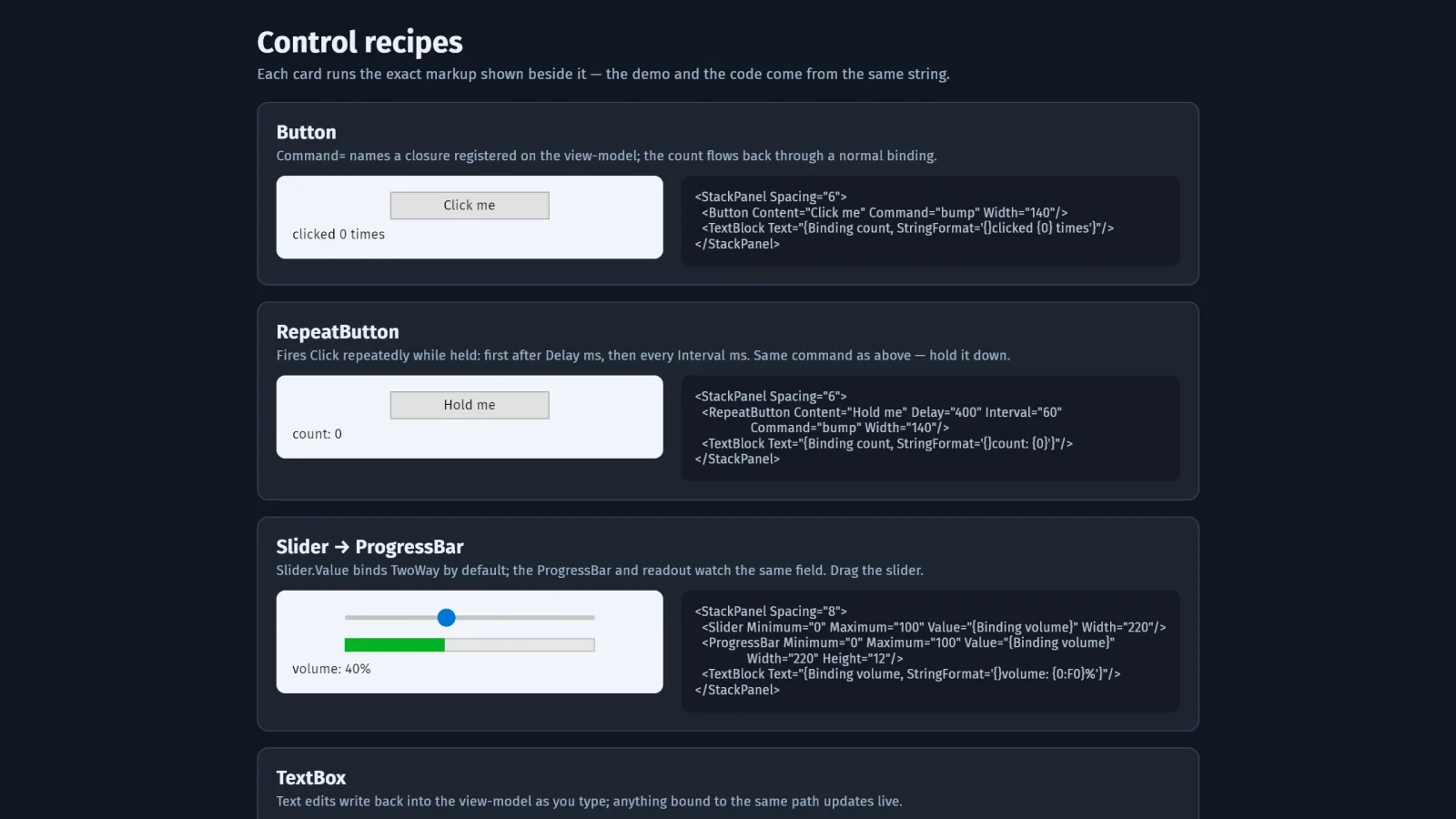
This is the snippets_gallery example running natively. Each card renders the exact string printed next to it — the demo and the code are the same markup, so neither can drift from the other.

The bevy_pf control recipes gallery: Button, RepeatButton and Slider cards, each rendering live beside the XAML that produced it

Control recipes

Every control, and the markup that makes it

15 recipes, taken verbatim from the framework’s own snippets_gallery example — so this is the exact markup that example compiles and renders, not a paraphrase of it.

Button

Command= names a closure registered on the view-model; the count flows back through a normal binding.

XAML
<StackPanel Spacing="6">
  <Button Content="Click me" Command="bump" Width="140"/>
  <TextBlock Text="{Binding count, StringFormat='{}clicked {0} times'}"/>
</StackPanel>
Rust
let vm = Bindable::new(Vm::default());
vm.on_command("bump", {
    let vm = vm.clone();
    move |_world, _param| { vm.update(|m: &mut Vm| m.count += 1.0); }
});

RepeatButton

Fires Click repeatedly while held: first after Delay ms, then every Interval ms. Same command as above — hold it down.

XAML
<StackPanel Spacing="6">
  <RepeatButton Content="Hold me" Delay="400" Interval="60"
                Command="bump" Width="140"/>
  <TextBlock Text="{Binding count, StringFormat='{}count: {0}'}"/>
</StackPanel>

Slider → ProgressBar

Slider.Value binds TwoWay by default; the ProgressBar and readout watch the same field. Drag the slider.

XAML
<StackPanel Spacing="8">
  <Slider Minimum="0" Maximum="100" Value="{Binding volume}" Width="220"/>
  <ProgressBar Minimum="0" Maximum="100" Value="{Binding volume}"
               Width="220" Height="12"/>
  <TextBlock Text="{Binding volume, StringFormat='{}volume: {0:F0}%'}"/>
</StackPanel>

TextBox

Text edits write back into the view-model as you type; anything bound to the same path updates live.

XAML
<StackPanel Spacing="6">
  <TextBox Text="{Binding name}" Width="220"/>
  <TextBlock Text="{Binding name, StringFormat='{}Hello, {0}!'}"/>
</StackPanel>

PasswordBox

A TextBox that masks input with • as you type. The real password stays out of the visual tree.

XAML
<PasswordBox Width="220"/>

CheckBox + ToggleButton

IsChecked binds TwoWay; both controls and the readout share one boolean.

XAML
<StackPanel Spacing="6">
  <CheckBox Content="I agree" IsChecked="{Binding agreed}"/>
  <ToggleButton Content="Same flag" IsChecked="{Binding agreed}"/>
  <TextBlock Text="{Binding agreed, StringFormat='{}agreed: {0}'}"/>
</StackPanel>

RadioButton

GroupName scopes exclusivity — pick one of three.

XAML
<StackPanel Spacing="4">
  <RadioButton GroupName="quality" Content="Low"/>
  <RadioButton GroupName="quality" Content="Medium" IsChecked="True"/>
  <RadioButton GroupName="quality" Content="High"/>
</StackPanel>

ComboBox

SelectedIndex binds TwoWay — the readout follows your pick.

XAML
<StackPanel Spacing="6">
  <ComboBox SelectedIndex="{Binding pick}" Width="180">
    <ComboBoxItem Content="Ada"/>
    <ComboBoxItem Content="Grace"/>
    <ComboBoxItem Content="Edsger"/>
  </ComboBox>
  <TextBlock Text="{Binding pick, StringFormat='{}selected index: {0}'}"/>
</StackPanel>

ListBox + ItemsSource

Items generate from a Vec on the view-model; ItemsPanel swaps the layout to a WrapPanel and ItemContainerStyle restyles every generated item.

XAML
<ListBox ItemsSource="{Binding items}" Width="230">
  <ListBox.ItemsPanel>
    <ItemsPanelTemplate>
      <WrapPanel/>
    </ItemsPanelTemplate>
  </ListBox.ItemsPanel>
  <ListBox.ItemContainerStyle>
    <Style TargetType="ListBoxItem">
      <Setter Property="Padding" Value="8,4"/>
      <Setter Property="Margin" Value="2"/>
    </Style>
  </ListBox.ItemContainerStyle>
</ListBox>
Rust
let vm = Bindable::new(Vm {
    items: vec!["Ada".into(), "Grace".into(), "Edsger".into(),
                "Barbara".into(), "Tony".into()],
    ..Default::default()
});

ContentControl + DataTemplate

Content binds to a struct; the DataTemplate is selected by the value's type (DataType=), WPF's implicit-template rule.

XAML
<StackPanel Spacing="6">
  <StackPanel.Resources>
    <DataTemplate DataType="{x:Type Profile}">
      <Border Background="#26303F" CornerRadius="6" Padding="10,6">
        <StackPanel>
          <TextBlock Text="{Binding name}" FontWeight="Bold"
                     Foreground="#EDF2FA"/>
          <TextBlock Text="{Binding role}" FontSize="11"
                     Foreground="#9FB4CE"/>
        </StackPanel>
      </Border>
    </DataTemplate>
  </StackPanel.Resources>
  <ContentControl Content="{Binding profile}"/>
</StackPanel>

Style + Trigger

A keyed style with an IsMouseOver trigger — hover the button. Deactivation reverts structurally; no code.

XAML
<StackPanel>
  <StackPanel.Resources>
    <Style x:Key="Hot" TargetType="Button">
      <Setter Property="Background" Value="#3C4658"/>
      <Setter Property="Foreground" Value="#EDF2FA"/>
      <Setter Property="Padding" Value="14,8"/>
      <Style.Triggers>
        <Trigger Property="IsMouseOver" Value="True">
          <Setter Property="Background" Value="#5B8DEF"/>
        </Trigger>
      </Style.Triggers>
    </Style>
  </StackPanel.Resources>
  <Button Content="Hover me" Style="{StaticResource Hot}" Width="140"/>
</StackPanel>

Storyboard

Trigger.EnterActions / ExitActions fade the card in and out on hover — a real WPF storyboard, no code-behind.

XAML
<StackPanel>
  <StackPanel.Resources>
    <Style x:Key="Fade" TargetType="Border">
      <Setter Property="Opacity" Value="0.35"/>
      <Style.Triggers>
        <Trigger Property="IsMouseOver" Value="True">
          <Trigger.EnterActions>
            <BeginStoryboard>
              <Storyboard>
                <DoubleAnimation Storyboard.TargetProperty="Opacity"
                                 To="1" Duration="0:0:0.25"/>
              </Storyboard>
            </BeginStoryboard>
          </Trigger.EnterActions>
          <Trigger.ExitActions>
            <BeginStoryboard>
              <Storyboard>
                <DoubleAnimation Storyboard.TargetProperty="Opacity"
                                 To="0.35" Duration="0:0:0.4"/>
              </Storyboard>
            </BeginStoryboard>
          </Trigger.ExitActions>
        </Trigger>
      </Style.Triggers>
    </Style>
  </StackPanel.Resources>
  <Border Style="{StaticResource Fade}" Background="#5B8DEF"
          CornerRadius="8" Padding="16" Width="200">
    <TextBlock Text="hover to fade in" Foreground="White"/>
  </Border>
</StackPanel>

Shapes

Vector graphics with the WPF path mini-language — rendered by the same engine on native and wasm.

XAML
<Canvas Width="240" Height="90">
  <Ellipse Canvas.Left="6" Canvas.Top="12" Width="64" Height="64"
           Fill="#5B8DEF"/>
  <Rectangle Canvas.Left="86" Canvas.Top="12" Width="64" Height="64"
             Fill="#35E0B8" RadiusX="10" RadiusY="10"/>
  <Path Canvas.Left="166" Canvas.Top="12" Width="64" Height="64"
        Stretch="Fill" Fill="#EF6A5B"
        Data="M 50,5 61,35 95,35 67,55 78,90 50,68 22,90 33,55 5,35 39,35 Z"/>
</Canvas>

Expander + ToolTip

Disclosure and hover hints, straight from markup.

XAML
<Expander Header="Details" IsExpanded="True" Width="230">
  <StackPanel Spacing="4">
    <TextBlock Text="Anything can live in here."/>
    <Button Content="With a tooltip" Width="140"
            ToolTip="Hovered long enough!"/>
  </StackPanel>
</Expander>

ScrollBar

Proportional thumb (ViewportSize), draggable, line buttons repeat while held; Value binds two-way — drag it and watch the readout.

XAML
<StackPanel Orientation="Horizontal" Spacing="10">
  <ScrollBar Minimum="0" Maximum="100" ViewportSize="25"
             SmallChange="5" Value="{Binding volume}" Height="120"/>
  <TextBlock Text="{Binding volume, StringFormat='{}at {0:F0}'}"
             VerticalAlignment="Center"/>
</StackPanel>

Run the whole thing

The repository carries twenty-odd examples — a control gallery, theming, data binding, navigation, an RPG HUD and a playable Breakout. Clone it and pick one.

Shell
git clone https://github.com/edgarhsanchez/bevy_pf
cd bevy_pf
cargo run --example snippets_gallery
More from M2IAB: all libraries · the games they are built for